

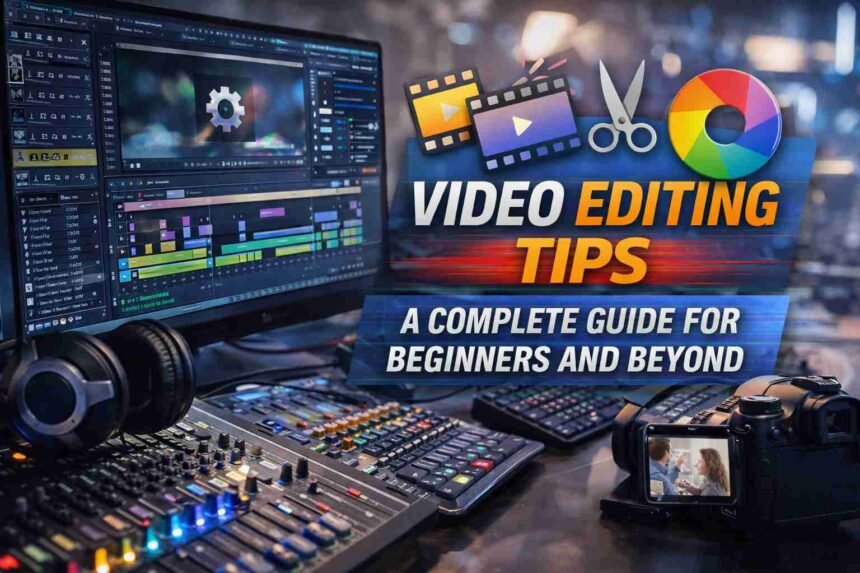
Good video editing tips can be the difference between a forgettable clip and one that actually holds attention from start to finish. Whether you’re cutting your first short film or fine-tuning a YouTube series, the editing process shapes everything — pacing, emotion, clarity, and how the story lands with viewers.
- Essential Video Editing Techniques Every Editor Should Know
- How to Perfect Your Cuts and Shots
- Zoom In for Precision
- Use Wide Shots Sparingly
- Choose the Best Angles and Takes
- Cut on Action to Remove Mistakes
- Mastering Pacing and Rhythm in Video Editing
- Using B-Roll Shots Effectively
- Working with Body Language and Speaker Cues
- Eye Alignment and Visual Consistency in Edits
- Transition Time Settings and Effect Controls
- Best Video Editing Software for Beginners and Professionals
- Free and Open-Source Editing Tools
- Mobile and User-Friendly Editing Apps
- Professional-Grade Editing Software
- How to Organize Your Footage Before Editing
- Tips to Tell a Visual Story Through Editing
- How to Practice and Improve Your Editing Skills
- Joining the Editing Community and Continuing Education
- Conclusion
- FAQs
- FAQ 1: What are the most important video editing techniques for beginners?
- FAQ 2: What is the best free video editing software for beginners?
- FAQ 3: How do L-cuts and J-cuts improve video editing?
- FAQ 4: What is the rule of thirds in video editing?
- FAQ 5: How does color grading differ from color correction?
- FAQ 6: What is B-roll footage, and how should it be used?
- FAQ 7: How can I improve pacing in my video edits?
- FAQ 8: What is speed ramping in video editing?
- FAQ 9: How do I organize footage before starting to edit?
- FAQ 10: What is continuity editing, and why does it matter?
Raw footage alone doesn’t tell a story. What you choose to keep, where you make your cuts, and how audio and visuals work together — that’s where the real storytelling happens. This guide walks through the core techniques, tools, and principles that move you from basic cuts to confident, purposeful editing.
Essential Video Editing Techniques Every Editor Should Know
Before touching any timeline, it’s worth understanding the foundational techniques that underpin professional editing. These aren’t software-specific tricks — they’re universal principles used across documentary, narrative film, social content, and commercial work.
Cutting and Timing
The cut is your most powerful tool. Tight cuts remove everything that doesn’t serve the story — unnecessary pauses, repeated phrasing, dead air between lines of dialogue. A well-timed cut keeps the viewer inside the moment rather than aware they’re watching edited footage.
Pay attention to rhythm. Some scenes benefit from longer cuts; others demand rapid pacing to build tension or momentum. Letting timing serve the emotion rather than following a fixed pattern separates competent editing from instinctive editing.
Continuity Editing
Continuity editing maintains logical flow between shots. If an actor reaches for a glass in one shot, that motion needs to continue naturally in the next — regardless of whether those shots were filmed hours apart.
Key rules include the 180-degree rule (keeping the camera on one side of the action line), match cuts (visual or action-based continuity between clips), and shot-reverse-shot sequences used in conversations. Breaking these accidentally creates jarring spatial inconsistency; breaking them intentionally can be a powerful creative choice.
Transitions
Not all transitions are created equal. A straight cut communicates that we’re in the same moment in time. A cross-dissolve implies time has passed or the location has shifted. L-cuts and J-cuts — where audio from the next scene begins before the picture changes — are among the most effective tools for smoothing scene-to-scene flow without the viewer noticing the edit.
Avoid overloading your timeline with flashy wipes or dramatic transitions. Restraint almost always wins. Markers and guides in your software help align transitions precisely, especially in music-driven sequences.
Color Correction and Color Grading
These are related but distinct processes. Color correction normalizes your footage — fixing exposure inconsistencies, adjusting brightness and contrast, and matching clips so they look like they belong together. Color grading is the creative layer on top: manipulating color to establish mood, evoke specific emotions, or create a stylized visual aesthetic.
A cold, desaturated grade signals detachment or tension. Warm tones suggest intimacy. The grade you choose should serve the story, not just look interesting.
Audio Editing
Audio is where most beginner editors underinvest. Clean dialogue, balanced volume levels across tracks, well-timed sound effects, and music that supports rather than overwhelms the scene — all of these shape how viewers experience a video emotionally.
Techniques worth practicing: removing background noise from location audio, syncing ambient sounds to reinforce a sense of place, using EQ to separate dialogue frequencies from music, and employing a sound bridge (audio from the next scene beginning before the picture cut) to create seamless transitions.
How to Perfect Your Cuts and Shots
Zoom In for Precision
When working with a tricky edit point — a jump cut, an unwanted pause, or a moment where two clips don’t quite match — zooming into the timeline gives you frame-level control. Even a single frame of difference can affect whether a cut feels smooth or jarring.
A subtle 10% zoom between two similar shots can also mask a cut that would otherwise feel abrupt. The key is to keep your point of focus (often the speaker’s eyes) centered throughout the adjustment.
Use Wide Shots Sparingly
Wide shots establish context at the start of a scene. Once the audience understands the setting, close-up and medium shots carry far more weight. Facial expressions and gestures communicate far more than a distant full-body frame.
Hold onto wide shots for establishing moments or dramatic reveals — not as a fallback when you’re unsure which angle to use.
Choose the Best Angles and Takes
Let performance and camera work guide your shot selection, not personal preference. In documentary or interview work, think about what the audience wants to see while listening — the speaker’s face, a relevant cutaway, a reaction shot. In scripted work, the character’s emotional state and their relationship to the story should drive which take you use, even if another take was technically better.
Some of the most powerful footage ends up on the cutting room floor. That’s not waste — it’s editing.
Cut on Action to Remove Mistakes
Cutting on action is one of the cleanest ways to conceal technical errors or speaking mistakes. The technique involves cutting from one angle to another at the peak of a physical movement — so the viewer’s eye follows the motion rather than noticing the edit point.
This works because our brains process continuous movement as a single event, even when the shots come from different takes filmed hours apart.
Mastering Pacing and Rhythm in Video Editing
Pacing isn’t about cutting fast or slow — it’s about matching the rhythm of your edits to the scene’s emotional needs. Think of it like music: a song builds tension through dynamics, not just speed.
For dialogue-heavy scenes, switching between multiple camera angles and using B-roll prevents the static feel of a locked-off two-person shot. For action sequences, faster cuts push energy. In emotional moments, holding a shot slightly longer gives the audience space to feel.
Web videos require particular attention here. Viewer drop-off is rapid online. Tight, purposeful pacing in the first 30 seconds matters more than almost anything else.
Using B-Roll Shots Effectively
B-roll serves two purposes: covering edits you can’t cut cleanly on the primary footage, and enriching the visual experience with context that the main shot can’t provide.
A practical rule: use B-roll clips in groups of three, each roughly 1.5 to 2 seconds long. Single cutaways feel incomplete; four or more in a row can start to feel padded. Three clips provide enough visual context to feel natural—mirroring how we actually scan a new environment when we walk into a room.
Point-of-view inserts work particularly well here, helping the audience experience the scene from the character’s perspective.
Working with Body Language and Speaker Cues
Editor Walter Murch, working on The Conversation (1974), observed that Gene Hackman would blink almost precisely when Murch felt the instinct to cut. That discovery informed a broader principle: people signal mental transitions physically — a blink, a breath, a shift in posture — just before a new thought or emotion registers.
Paying attention to a speaker’s intonation, rhythm, and physical cues gives your editing a natural tempo that audiences sense without consciously identifying. It creates a flow that feels earned rather than constructed.
Eye Alignment and Visual Consistency in Edits
When cutting between similar shots — especially close-ups of the same subject — keeping the eyes at a consistent vertical and horizontal position reduces visual “jumping.” The audience’s attention is anchored in the eyes, so any inconsistency between cuts pulls focus unnecessarily.
Using X and Y positioning controls within your software’s effect panel, you can nudge clips slightly to align key features at the cut point. This is subtle work, but it’s what separates polished editing from footage that feels slightly off.
Transition Time Settings and Effect Controls
Most editing software defaults to preset transition durations based on aggregated user data. A cross-fade, for instance, might default to five frames. That’s a reasonable starting point — but not necessarily right for your specific cut.
Always preview transitions at different durations before committing. Ask whether the transition aids the flow or calls attention to itself. If you notice the transition, it’s probably doing too much.
Best Video Editing Software for Beginners and Professionals
| Software | Level | Cost | Key Strength |
| DaVinci Resolve | Beginner–Pro | Free / Paid | Color grading, audio mixing |
| Kdenlive | Beginner | Free | Open-source, feature-rich |
| Shotcut | Beginner | Free | Simple interface |
| CapCut | Beginner | Free | Mobile/social content |
| iMovie | Beginner | Free (Apple) | Quick, polished output |
| Adobe Premiere Pro | Professional | Subscription | Industry standard |
| Final Cut Pro | Professional | One-time (Apple) | Optimized for Mac |
| Wondershare Filmora | Intermediate | Paid | Accessible advanced features |
Free and Open-Source Editing Tools
DaVinci Resolve offers professional-grade color correction and audio mixing at no cost, making it the most capable free option available. Kdenlive is open-source and surprisingly full-featured for a beginner editor. Shotcut is lightweight and quick to learn.
Mobile and User-Friendly Editing Apps
CapCut has become the dominant choice for TikTok and Reels editing — its built-in templates and effects are optimized for short-form social content. iMovie remains the easiest entry point for Apple users, with enough capability to produce clean, polished videos without a learning curve.
Professional-Grade Editing Software
Adobe Premiere Pro is the industry standard across film, broadcast, and digital media. Final Cut Pro offers a streamlined experience optimized for Mac hardware. Wondershare Filmora bridges the gap well — more capable than consumer apps, less demanding than Premiere Pro.
How to Organize Your Footage Before Editing
A disorganized project slows everything down. Before opening a timeline, take the time to name and sort your clips—group by scene, shot type (wide, medium, close-up, B-roll), and subject. Use a consistent naming system — something like Scene2_Shot3_CU — so you can locate exactly what you need without scrubbing through unorganized folders.
Color-code your timeline once clips are imported. Most professional editing software supports this, and it dramatically speeds up navigation on longer projects.
Tips to Tell a Visual Story Through Editing
Editing is fundamentally a storytelling act. Every cut, every piece of music, every moment of silence is a choice that shapes what the audience feels and understands.
- Use pacing and music together to build emotional momentum
- Don’t overcrowd scenes with effects — restraint keeps the story clear
- Guide viewer attention through movement, sound, or focal points rather than relying only on dialogue
- Simplify ruthlessly: if a clip doesn’t add meaning, remove it
The edit serves the narrative, not the other way around.
How to Practice and Improve Your Editing Skills
Study edited work actively. Watch your favorite films or TV shows with the editing in mind — notice when cuts happen, how pacing shifts between scenes, and what makes a transition feel natural. Platforms like Vimeo host short films that reward close viewing.
Share your projects with communities like Reddit’s r/videography or editing forums for feedback. Outside perspective reveals things you stop seeing after hours on the same timeline.
Experiment with cutting styles and transitions you wouldn’t normally use. Creative mistakes often teach more than successful defaults.
Joining the Editing Community and Continuing Education
Editing is a craft that benefits enormously from learning alongside others. Online forums, editing-specific workshops, and platforms like Film Editing Pro offer both structured learning and community feedback. Formal programs — including on-campus and online offerings through institutions like The Los Angeles Film School — provide structured pathways for those pursuing a career in editing.
Networking at local film meetups or editing workshops connects you with people whose work can challenge and expand your own.
Conclusion
Strong video editing tips aren’t about memorizing rules — they’re about understanding why certain choices work. Timing, continuity, audio design, color grading, and software selection all matter, but they serve a single goal: keeping the audience inside the story.
Start with the fundamentals. Practice deliberately. Study the work you admire. The rest follows from there.
FAQs
FAQ 1: What are the most important video editing techniques for beginners?
Focus first on tight cuts, basic continuity editing, and audio balance. Getting these three right will improve the quality of any edit more than any effect or transition.
FAQ 2: What is the best free video editing software for beginners?
DaVinci Resolve is the most capable free option — it includes professional color correction and audio mixing. For a simpler start, Shotcut or CapCut are both accessible and require no learning curve.
FAQ 3: How do L-cuts and J-cuts improve video editing?
They allow audio and picture to change at different times, creating smoother scene transitions. The audience hears the next scene before seeing it (J-cut) or continues hearing the previous scene while the picture changes (L-cut). Both feel more natural than hard cuts on dialogue.
FAQ 4: What is the rule of thirds in video editing?
It’s a framing principle: divide the frame into a 3×3 grid and place subjects along those lines or at their intersections rather than at dead center. It creates a more visually engaging composition.
FAQ 5: How does color grading differ from color correction?
Color correction fixes technical problems — exposure, white balance, consistency between clips. Color grading is the creative step after that, using color to shape mood, establish tone, and create a visual identity for the project.
FAQ 6: What is B-roll footage, and how should it be used?
B-roll is supplementary footage used to cover edits, add visual context, or enrich a scene. Use it in groups of roughly three clips, each around 1.5 to 2 seconds long, to maintain a natural visual rhythm.
FAQ 7: How can I improve pacing in my video edits?
Match your cut rhythm to the emotional energy of each scene. Use B-roll, camera angle changes, and music strategically. Avoid locked-off single-camera setups for anything longer than a very short sequence.
FAQ 8: What is speed ramping in video editing?
Speed ramping is the technique of smoothly transitioning between playback speeds within a single clip—slowing down for impact and speeding up for energy. It’s widely used in action and commercial content.
FAQ 9: How do I organize footage before starting to edit?
Create folders by scene and shot type. Use a consistent file naming system. Color-code your timeline clips by category. A few minutes of organization at the start saves hours later.
FAQ 10: What is continuity editing, and why does it matter?
Continuity editing maintains a logical flow of time, space, and action between shots. Techniques like the 180-degree rule, match cuts, and eyeline matching prevent disorienting jumps that pull the viewer out of the story.