


Contacts are among the most essential data stored on smartphones. Losing these contacts – whether due to accidental deletion, syncing errors, software updates, or factory resets – can be distressing. The good news is that several Android data recovery methods are available that can help you recover your lost contacts easily.
- Understanding Contact Deletion on Android
- Quick Methods to Recover Deleted Contacts on Android
- Method 01: Recover Contacts from Google Contacts
- Method 02: Use Phone Manufacturer Backup Services
- Method 03: Restore Contacts Using Google Account Backup
- Method 04: Use Third-Party Android Data Recovery Software
- Conclusion
- Frequently Asked Questions (FAQs)
Whether you have a backup or not, these methods can help restore deleted contacts. In this article, we’ll explore quick and effective ways to recover deleted contacts from Android phones.
Understanding Contact Deletion on Android
When you delete contacts from your Android phone, they don’t always disappear immediately. Instead, they go to the Trash folder (or Bin) and remain there for some days – typically, say 30 days. After that, they get permanently deleted. That’s why acting quickly is crucial – the sooner you act, the better your chances of restoring your deleted contacts.
Before diving into different methods to restore your lost contacts on Android, it’s important to find the exact reason for such loss. Some main reasons why contacts get deleted on your Android device include:
- Accidental Deletion: This is one of the most common reasons, i.e., when you unintentionally delete contacts while cleaning up your phone or managing its contact list.
- Factory Reset: Performing a factory reset wipes all data from the device, including contacts—especially if they were not synced or backed up.
- Software Updates or System Glitches: Sometimes, after a system update or due to a bug, contacts may temporarily disappear or get corrupted.
- Malware or Untrusted Apps: Installing apps from unknown sources can lead to malware infections that may delete or corrupt your contact data.
- SD Card Corruption: If contacts are stored or backed up on an SD card, corruption or failure of the card can cause data loss.
Quick Methods to Recover Deleted Contacts on Android
Now that you are familiar with different reasons for contact loss on your Android phone, it’s time to apply an adequate recovery method to get it back. Here are some quick and easy Android data recovery workarounds that can help you restore deleted contacts without much effort:
Method 01: Recover Contacts from Google Contacts
If you’ve synced your Android device with your Google account, it will be easy to restore your lost contacts. Follow the steps below to get your deleted contacts from Android using a Google account:
- Open any web browser on your computer and go to Google Contacts.
- Sign in using the same Google account linked to your Android device.
- From the left navigation pane, go to “Trash” or “Bin.”
- Locate the deleted contacts that you need to recover and click Restore.
- Once restored, the contacts will sync back to your phone automatically.
Note: This method to recover deleted contacts on Android works only for some specific days after deletion (i.e. 30 days).
Method 02: Use Phone Manufacturer Backup Services
Many of the latest Android smartphones are manufactured with an in-built backup system, for example, Samsung Cloud, Xiaomi Cloud, and others. You can use these backups to restore your lost files and folders, including deleted contacts. For this:
- Launch the Settings app on your phone.
- Navigate to the manufacturer’s cloud service (e.g., Cloud & Accounts).
- Click Restore Data, then select Contacts.
- Choose the backup and go through the on-screen steps to restore.
Method 03: Restore Contacts Using Google Account Backup
If contact synchronisation is enabled on your Android device, Google automatically creates backups of your contacts, ensuring they are safely stored and can be recovered whenever required. Here’s how:
- Open Settings on your Android device.
- Now, go to Google> Manage backup or Backup & Restore (varies by device).
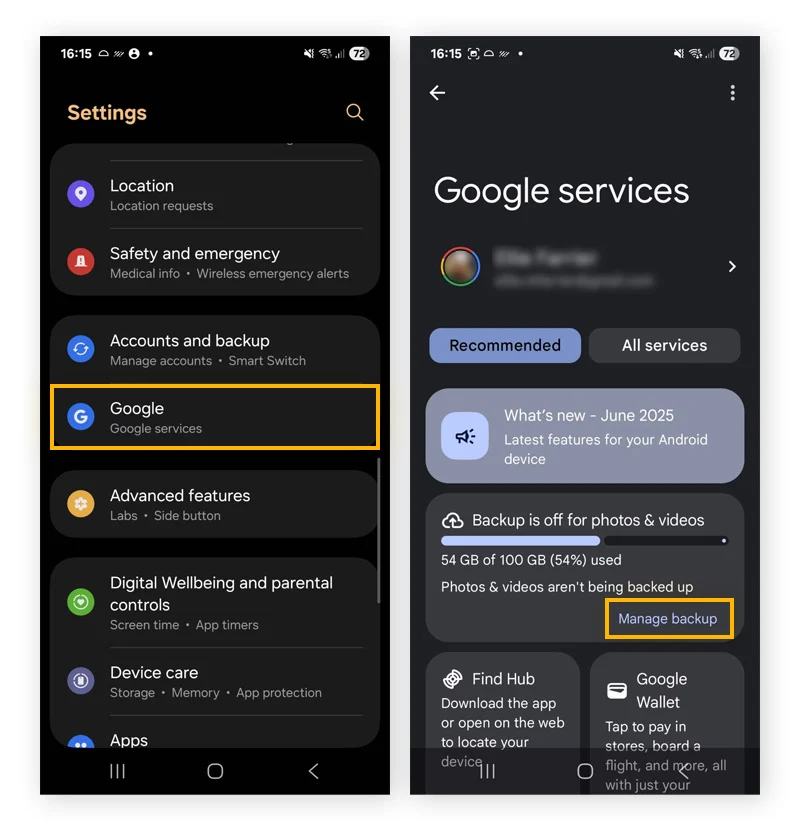
- Click Restore Contacts and choose the backup associated with your Google account.
- Select the device or backup file and click Restore.
Method 04: Use Third-Party Android Data Recovery Software
Instances may happen when you don’t have a backup of your deleted Android contacts. In such an Android data recovery case, you can try third-party software like Stellar Data Recovery for Android. This all-in-one data recovery software performs a thorough scanning of your Android device to find recoverable data of various file types, including photos, videos, documents, emails, etc. It is widely used due to its user-friendly interface and high recovery success rate.
The Stellar Data Recovery for Android software allows you to recover contacts deleted due to several reasons, including accidental deletion, formatting, system errors, and many more. The software supports contact recovery in three simple steps, i.e., Select, Scan, and Recover. Let’s explore the recovery process in detail:
Step 1: Download and install the Stellar Data Recovery for Android software on your Windows PC or Mac. Also, connect your Android phone to that device using a reliable USB cable.
Step 2: Launch the software and from the list of recoverable data types, select Contacts. Click Next to continue.
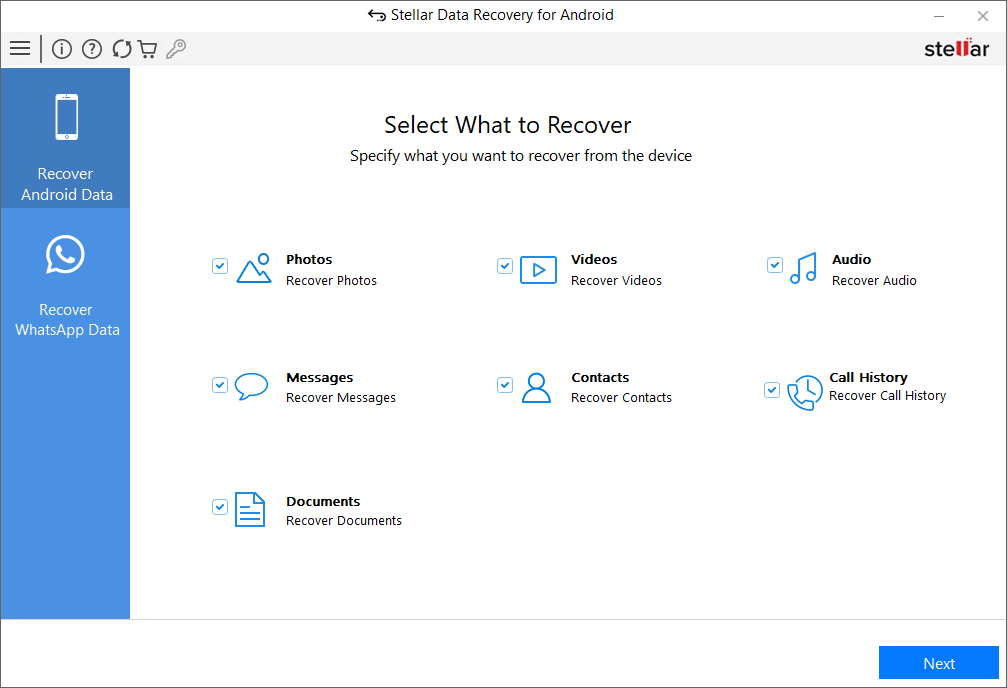
Step 3: Click on the Scan button and wait till the scanning completes. This process may take a few minutes, depending on the amount of data on your device.
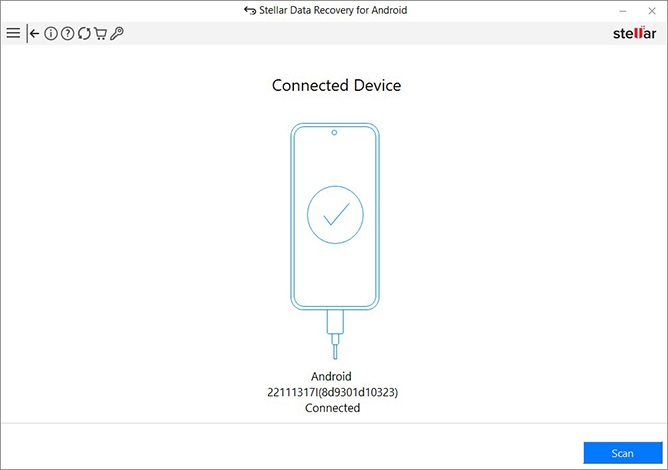
Step 4: After the scan is complete, the software will display a list of recoverable contacts. Select the contacts you want to restore and Save to save the recovered contacts.
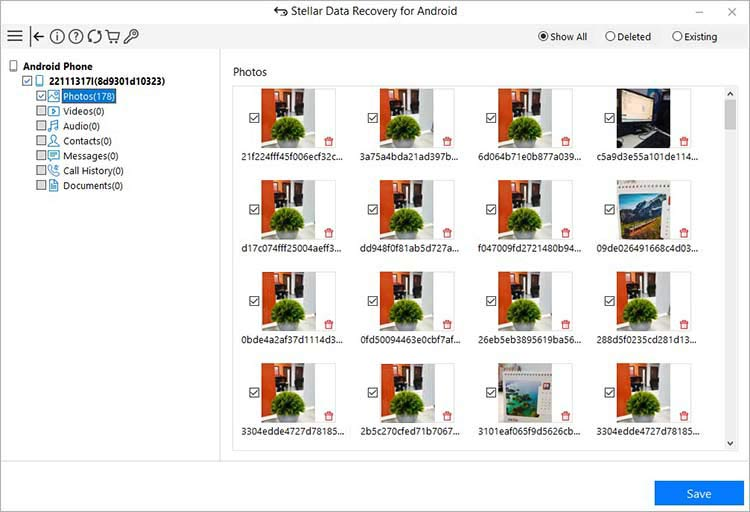
Key Features of Stellar Data Recovery for Android
This Android data recovery software is known for several amazing features, including:
- Supports recovery of deleted files of various types, including contacts, messages, call logs, photos, and videos
- The software is compatible with a wide range of Android devices and versions.
- The Preview feature lets you preview the recoverable files before saving them on your device.
- 100% safe and secure recovery process without data overwrite
Conclusion
Recovering deleted contacts from your Android smartphone is often possible, especially if backups are properly enabled on your device. The easiest method is through Google Contacts or via your Android device’s built-in backup options. However, if you don’t have any backup, try third-party Android data recovery software such as Stellar Data Recovery for Android.
To avoid future data loss, always keep backups enabled, regularly export your contacts, and ensure synchronisation with your Google account. With the right precautions and knowledge, losing contacts does not have to be a permanent problem.
Frequently Asked Questions (FAQs)
Can I recover deleted contacts without a backup?
Yes, you can recover deleted contacts without a backup using tools like Stellar Data Recovery for Android. These tools scan your device’s internal storage to retrieve lost data.
How long do deleted contacts stay recoverable?
If contacts are stored in a Google account, they remain in the Trash for up to 30 days. After that, recovery becomes more difficult and may require third-party Android data recovery software.
Why are my contacts missing but not deleted?
This can happen due to sync issues with your Google account, software glitches, or incorrect display settings in the Contacts app.